
Single-file and multi-file intake
Part of Upload inside AXIX IDP.
From upload to review dashboard — see AXIX IDP process bank statements and generic documents. Start free trial →
AXIX IDP
Upload is the front door for back-office document work. Teams drag in bank statements, generic forms, or mixed batches; AXIX IDP accepts the files, starts reading, and routes each item toward the right preset. Volume days no longer mean overnight email threads — intake is deliberate, traceable, and ready for the review dashboard.
Primary users: Operations
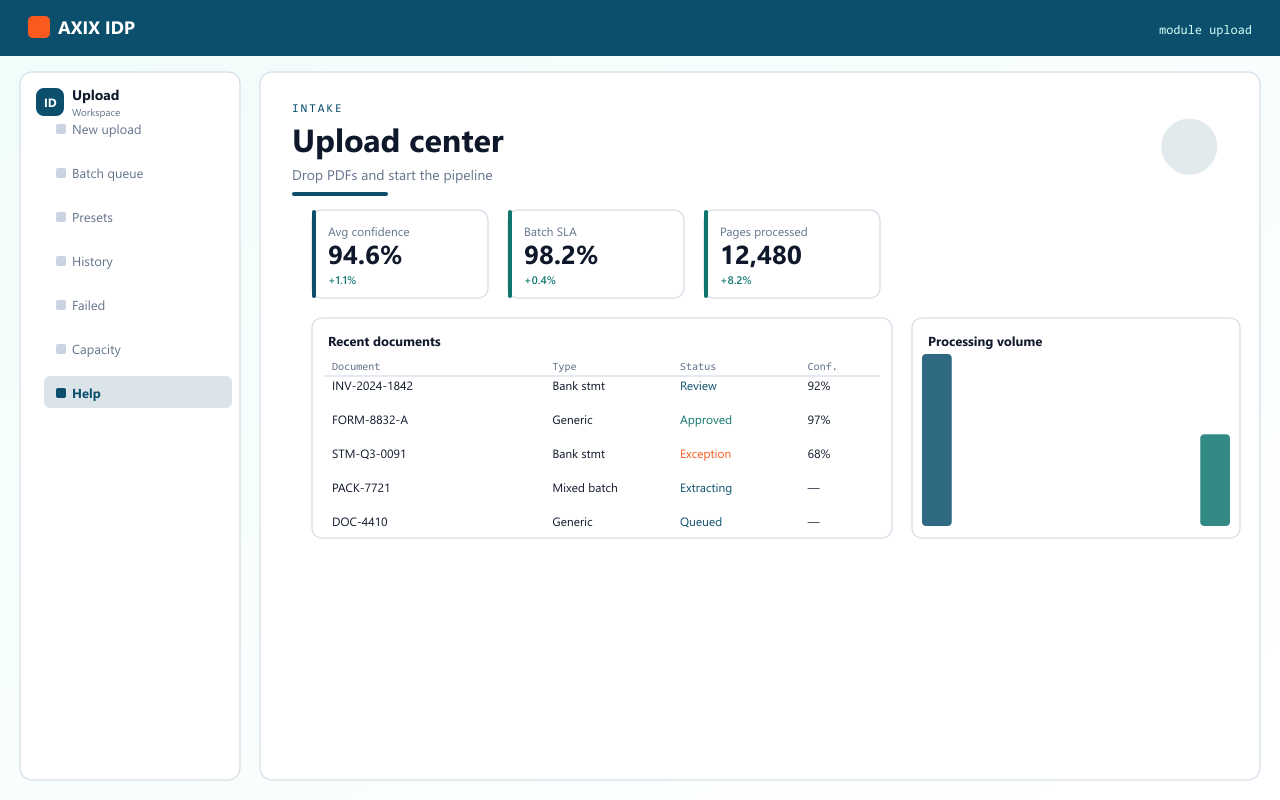
Upload makes intake deliberate: choose a preset, send a batch, and watch each file enter reading and classification. Capacity-aware prompts help when page quotas apply via the Axix portal.
Upload
Bring PDFs and scans into AXIX IDP in bulk or one-by-one, then hand them straight into reading, classification, and extraction.

Part of Upload inside AXIX IDP.
Part of Upload inside AXIX IDP.
Part of Upload inside AXIX IDP.
Part of Upload inside AXIX IDP.
Part of Upload inside AXIX IDP.
Part of Upload inside AXIX IDP.
Part of Upload inside AXIX IDP.
Part of Upload inside AXIX IDP.
How this module connects to upload → read → classify → extract → review.
Bring PDFs and scans into AXIX IDP — single files or mixed batches — and choose bank-statement or generic presets. Upload stays available as the packet moves.
AXIX IDP reads each page so text and layout become usable for classification and field work. Upload stays available as the packet moves.
Documents are typed and routed so the right schema and review path apply — statements vs. generic forms. Upload stays available as the packet moves.
Fields, tables, and repeating rows are pulled into structured results ready for human confirmation. Upload stays available as the packet moves.
The review dashboard surfaces confidence, exceptions, and ownership so ops and analysts can sign off. Upload stays available as the packet moves.
Volume days
“Multi-file intake with per-file status instead of silent failures.”
“We stopped treating intake like an after-hours chore — the pipeline starts when the files land.”
Related modules
AXIX IDP modules share status, presets, and review ownership — so switching surfaces never loses the packet.
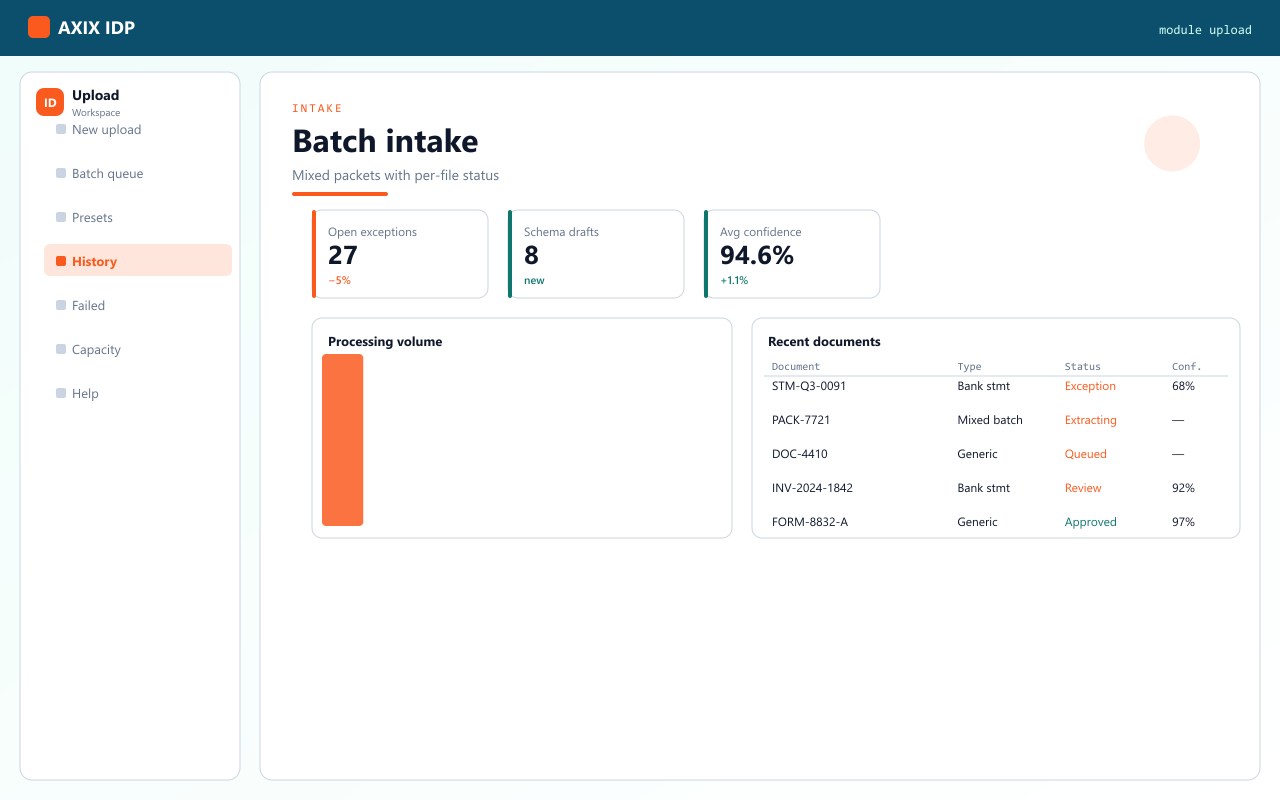
You can upload mixed batches; classification and presets help route each item toward the right review path.
From the product overview
AXIX IDP is Axix Technologies’ Intelligent Document Processing workspace: teams upload PDFs and similar packets, the system reads and classifies them, extracts structured fields (including tables), and reviewers validate results in a web dashboard — with optional page-quota integration against the Axix customer portal. On this page, Upload stays on that same path so products upload never becomes an orphan folder.
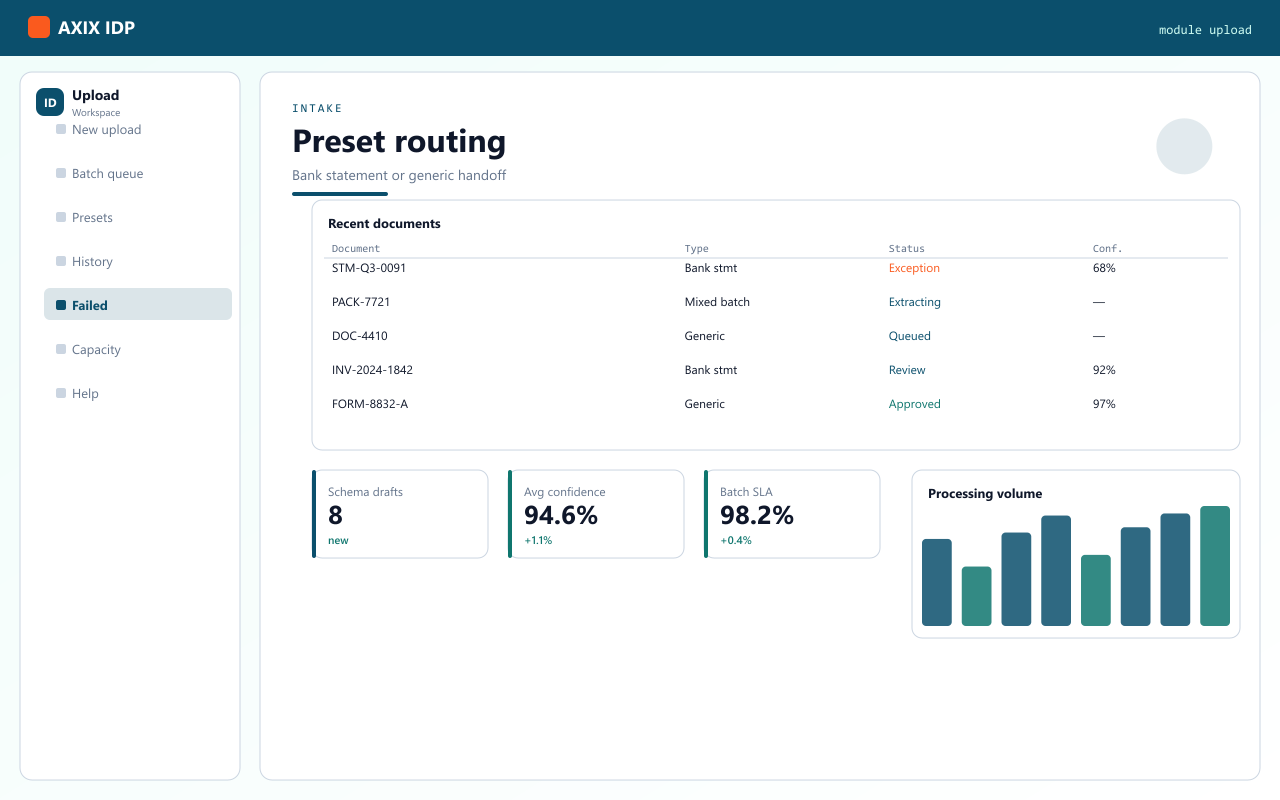
Three roles from the product brief — same workspace, different first clicks.
Digitize bank statements, invoices, forms at scale — Upload starts the pipeline; Documents tracks progress.
Check extracted fields, fix gaps, export results — open status, classification, and field grids in Documents.
Configure schemas, settings, and access — Schema Discovery for new types; Settings for portal linkage and capacity.
The same first path the product overview recommends — adapted for every marketing route.
After login you get AXIX IDP with left navigation: Documents, Upload, Schema Discovery, Settings, plus knowledge and agent chat where enabled.
Send one or more PDFs to start the pipeline. Track progress from the Documents list while reading, classification, and extraction run.
Open a packet for status, extracted fields, classification, and page artifacts. Reprocess or remove items when needed; export when fields are trusted.
Use Schema Discovery when onboarding a new document type. Admins use Settings for portal / account linkage and processing preferences — including page limits against the Axix portal.

Schema Discovery and Settings let us onboard a new document type and keep portal page limits visible. Ops keeps processing; we govern the shape.
Intake that matches how ops actually receives paper and PDFs. Start a free trial or talk to Axix about your document volume.